
How To Turn Off Toaster Notifications In Windows 8
Here is a tutorial on how to turn off toaster notifications in Windows 8. Well, yes…although its a nice addition to the newly built Microsoft’s Windows 8, however, sometimes it gets little annoying when a new alert comes up and breaks your concentration while you are working on a very important presentation. Therefore, we have come up with a simple step-by-step tutorial in which you can learn to disable toaster notifications in Windows 8.
Now, the good part is that it comes up with two options to turn it off – Temporarily for some specific time period or Disable Permanently.
Lets get started with the tutorial below:
How To Turn Off Toaster Notifications In Windows 8:
- Press Windows Key+I in combination.
- This will open the Metro control panel. now look at the bottom of the side bar, you will find a “Notifications Icon”.

- Click on the notifications icon. This will bring you the time limit options up to which you want to disable the toaster notifications. For example: you can hide it for 8hrs, 3hrs, or 1hr. The time limit shows the number of hours the toaster notifications will get disabled.
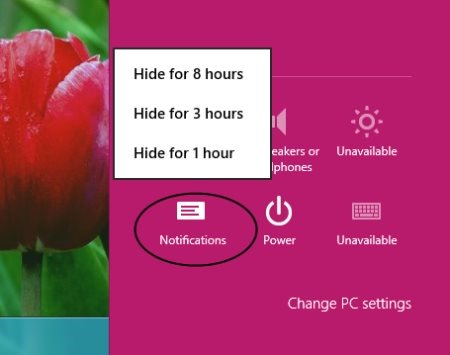
- However, in case you want to permanently turn off notifications in Windows 8, just click on “Change PC Settings”.

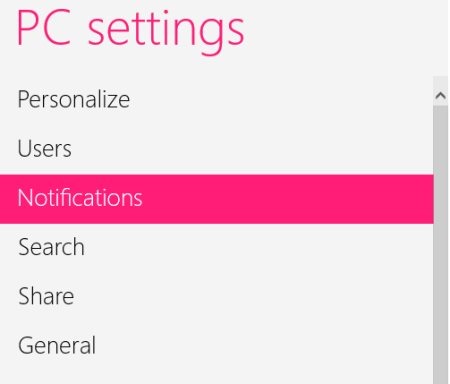
- Head over to the “Notifications” section.
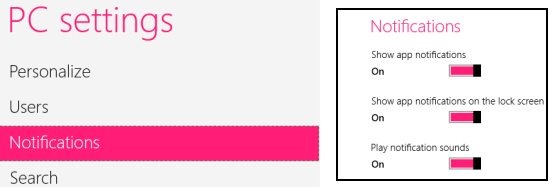
- At the right-side of the “Notification” bar, you will find options to toggle the settings according to your requirements.
Do not miss out more Windows 8 Tutorials posted by us.
Yupp..there you are. Go ahead and follow these easy steps to turn off toaster notifications in Windows 8.