
How to Disable Switching Between Running Applications In Windows 8
Here is a simple tutorial that tells you how to disable switching between running applications in Windows 8. Although, switching between Metro apps in Windows 8 is very beneficial as it allows you to turn onto another application instantly. All you do is just move your system’s mouse to the top left corner of your Windows 8 screen. However, in case you do not like this feature and want to remove such switching, then let me tell you…you can do it in just a couple of minutes.
Below given a is step-by-step tutorial on how to disable application switching in Windows 8. Lets get started:
How To Disable Switching Between Running Applications In Windows 8:
- Press “Windows Key+I” to let the slide bar appears.
- Now, click on “Change PC Settings” given at the bottom of the slide bar.
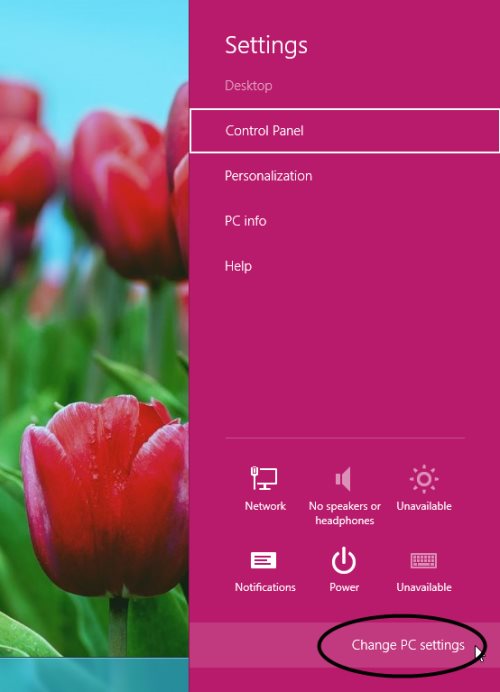
- This will quickly open “PC Settings”. Just head over to the “General” option.
- Now, look at the right side, you will find “App Switching” section. App switching is enabled by default, however, you can change it according to you preference.
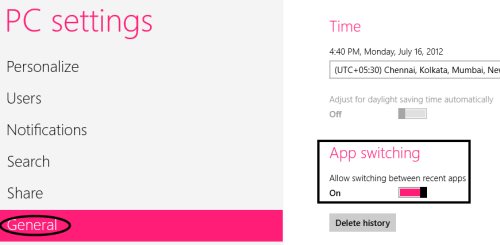
- In order to disable switching between running applications in Windows 8, just click over the slider given under the section “App Switching”.
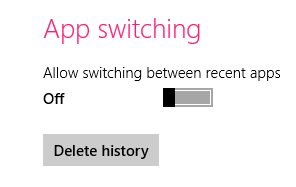
- Yupp…you are done. Now just move the mouse at the top left corner to check if the switching between the running applications has been disabled.
Check out more Windows 8 Tutorials posted by us.
Go ahead and follow the above given instructions to disable switching between running applications in Windows 8.